
On this page
Shopify has no per-product order limit for regular shoppers. Its quantity rules only apply to B2B catalogs. For everyone else, use an app whose limit runs inside Shopify’s cart and checkout (a Shopify Function), not just on your product page. Otherwise Buy it now and express checkouts walk straight past it.
You usually need a limit for one of three reasons: a sale item you don’t want resellers to clear out, a product you can only make so many of, or stock you’re splitting fairly between customers. The setup is the same for all three. What matters is where the limit is checked.
Why most “limit” tricks don’t hold
There are three places a limit can live, and only one of them is safe:
| Where the limit is checked | Can a buyer get around it? |
|---|---|
| The quantity box on your product page (theme code or a theme app) | Yes. Buy it now, an express button, or a cart link like /cart/123456:20 skip the box |
| The cart page (JavaScript in your theme) | Yes. Express checkout buttons on the product page never touch the cart page |
| Shopify’s cart and checkout (a Shopify Function) | No. Every route to an order goes through checkout |
So when you compare apps, ask one question: “Is the limit checked at checkout by a Shopify Function?” If the answer is vague, assume no.
The built-in option: B2B quantity rules
If you sell wholesale with Shopify’s B2B features, you already have quantity rules: a minimum, maximum and increment per product in a B2B catalog. They’re on the Basic, Grow, Advanced and Plus plans.
The catch is in the name. They only apply to buyers logged in as a company with that catalog. Your regular shoppers never see them, so they won’t help with a flash sale.
Set a maximum per order with OrderCap
This is our app, so take the recommendation with that in mind. Here’s the whole setup, start to finish. It takes about five minutes.
- Install OrderCap from the Shopify App Store and open it from your admin.
- Click Create rule and pick the Maximum per product template.
- Give the rule a name only you will see, like “Serum flash sale, max 2”.
- Under Applies to, choose Specific products, click Browse products and pick the product.
- Under Count, keep Each product on its own (more on this below).
- Under Limits, set Maximum to 2. Leave Minimum and Sold in multiples of empty.
- Keep Status on Active and click Save. The limit is live at checkout within a few seconds.
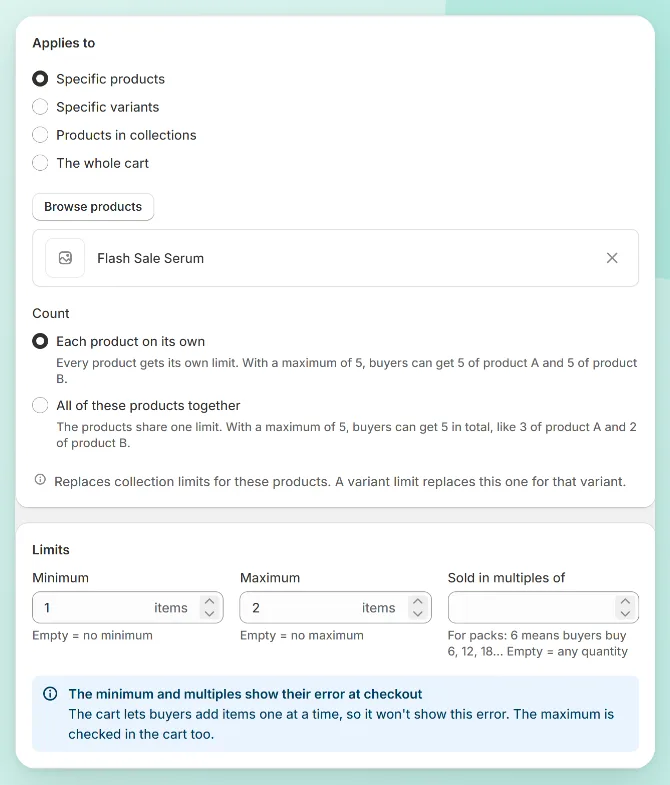
A maximum is checked twice: when the item is added to the cart, and again at checkout. A buyer who tries to put 3 in the cart is refused right away, with your message.
“Each product on its own” or “all together”?
This one setting causes most of the confusion, so here’s the difference with a maximum of 5:
- Each product on its own: every product gets its own 5. A buyer can take 5 of the serum and 5 of the cream.
- All of these products together: the products share one 5. Three serums and two creams, and they’re done.
Pick “together” when the products come from the same scarce supply, like four colors of a limited drop.
When several limits apply to the same product
You might have a collection-wide limit (“max 10 of anything in Sale”) and a tighter one for one product (“max 2 of the serum”). The most specific limit wins: a variant limit replaces the product limit, and a product limit replaces the collection limit. Whole-cart limits apply on top of all of them.
OrderCap won’t let you save two active rules that limit the same product at the same level, and it tells you which rule already has it. That prevents the classic “why is my limit 3 when I set 2?” mystery.
OrderCap by Centubo. Min, max and pack limits on any product, checked at checkout, plus payment rules like hiding COD on big orders. Free during launch.
Install on ShopifyWrite a message people won’t argue with
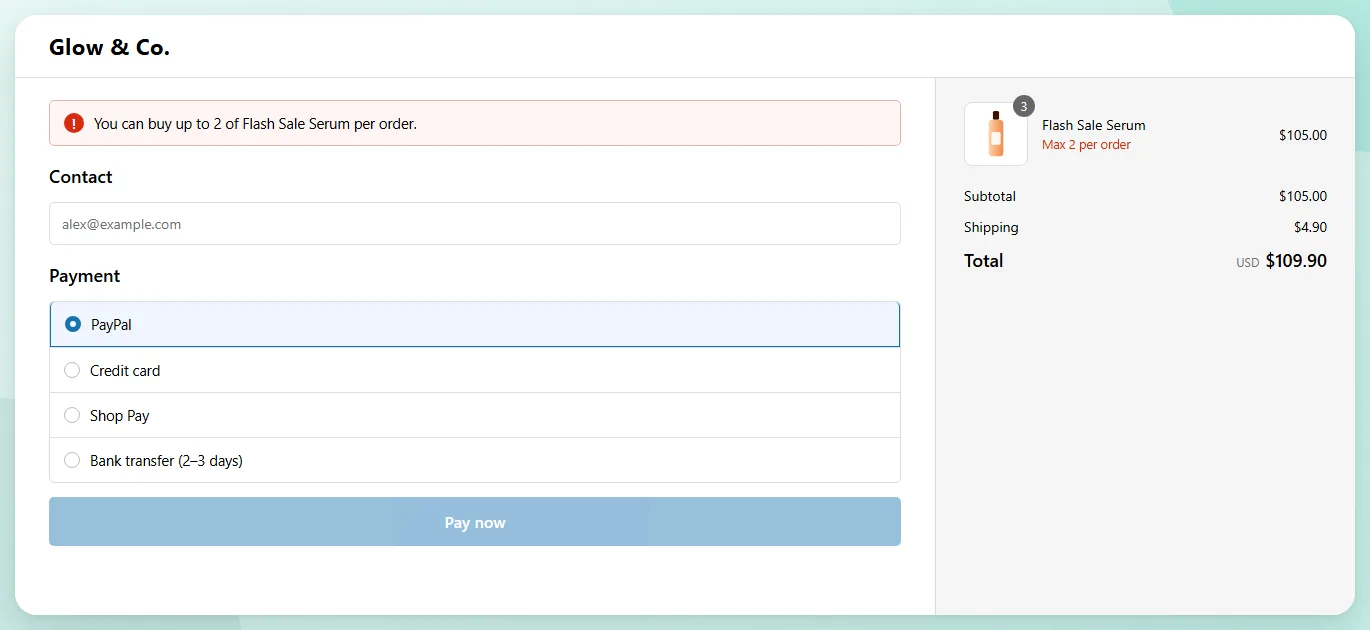
The default message is clear (“You can buy up to 2 of Flash Sale Serum per order”), but a reason helps. Buyers accept a limit when they understand it. Under Messages at checkout you can write your own, with {max} and {product} filled in for you:
Launch batch is small: up to {max} of {product} per order so more people get one.
If you sell in several languages, add a translation per checkout language in the same section.
Show the limit before checkout
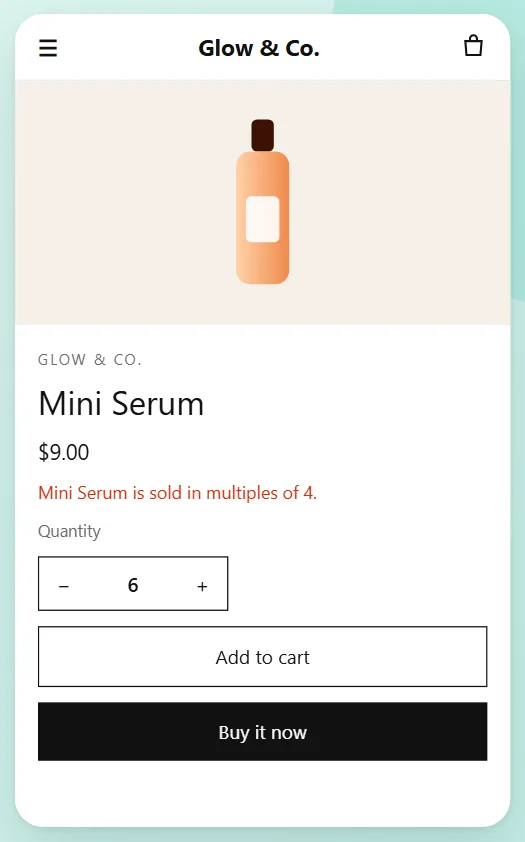
Nobody likes finding out about a rule on the payment page. Add the OrderCap limits block to your product page in the theme editor (Online Store > Themes > Customize, then Add block in the product section). It shows “Max 2 per order” next to the quantity field. It’s only a hint, though. The real check stays at checkout, so the limit holds even on a page where you forget the block.
Test it before your sale starts
Don’t let your first customer be your tester. Run through this list:
- Add the product 3 times on the product page. The cart should refuse the third.
- Click Buy it now with a quantity of 3, if your theme shows a quantity field next to it. Checkout should show your message and block payment.
- Try an express button (Shop Pay, PayPal). Same result.
- Add 2 and complete a test order. It should go through. On a development store, use Shopify’s Bogus Gateway.
You can also build a cart in OrderCap’s simulator to see the exact message a buyer would get, without placing an order.
What a per-order limit can’t do
Be honest with yourself about these before the sale:
- It resets every order. A determined buyer can place two orders of 2. If that matters, keep an eye on orders with the same address in the first hour, or cancel and refund duplicates. Your sale terms can say you’ll do that.
- It doesn’t reserve stock. If you have 50 units and a max of 2, the 26th buyer still gets nothing. Limits spread stock out. They don’t create more.
- Orders you create yourself in the admin aren’t limited. The rule is for buyers checking out, not for you.
Questions people ask
Can I limit quantity per order on Shopify without an app?
Only for B2B buyers. Shopify's quantity rules (minimum, maximum and increment) live in B2B catalogs, so they apply to company customers, not to regular shoppers. For everyone else you need an app that runs a cart and checkout validation.
Does a quantity limit work with Buy it now and Shop Pay?
It does if the limit runs inside Shopify's checkout as a Shopify Function. Limits that only change the quantity box on your theme can be skipped with Buy it now, express buttons or an edited cart link.
Can I limit how many times one customer buys a product, across orders?
Not with a per-order limit. A per-order maximum resets on every order. Limits per customer across orders need the customer to be logged in and an app that counts past purchases.
Do different variants count together?
In OrderCap, a product limit counts all variants of that product together. If you want a limit on one size or color only, apply the rule to that variant instead.